




How A Bid Becomes
A Leveled Column
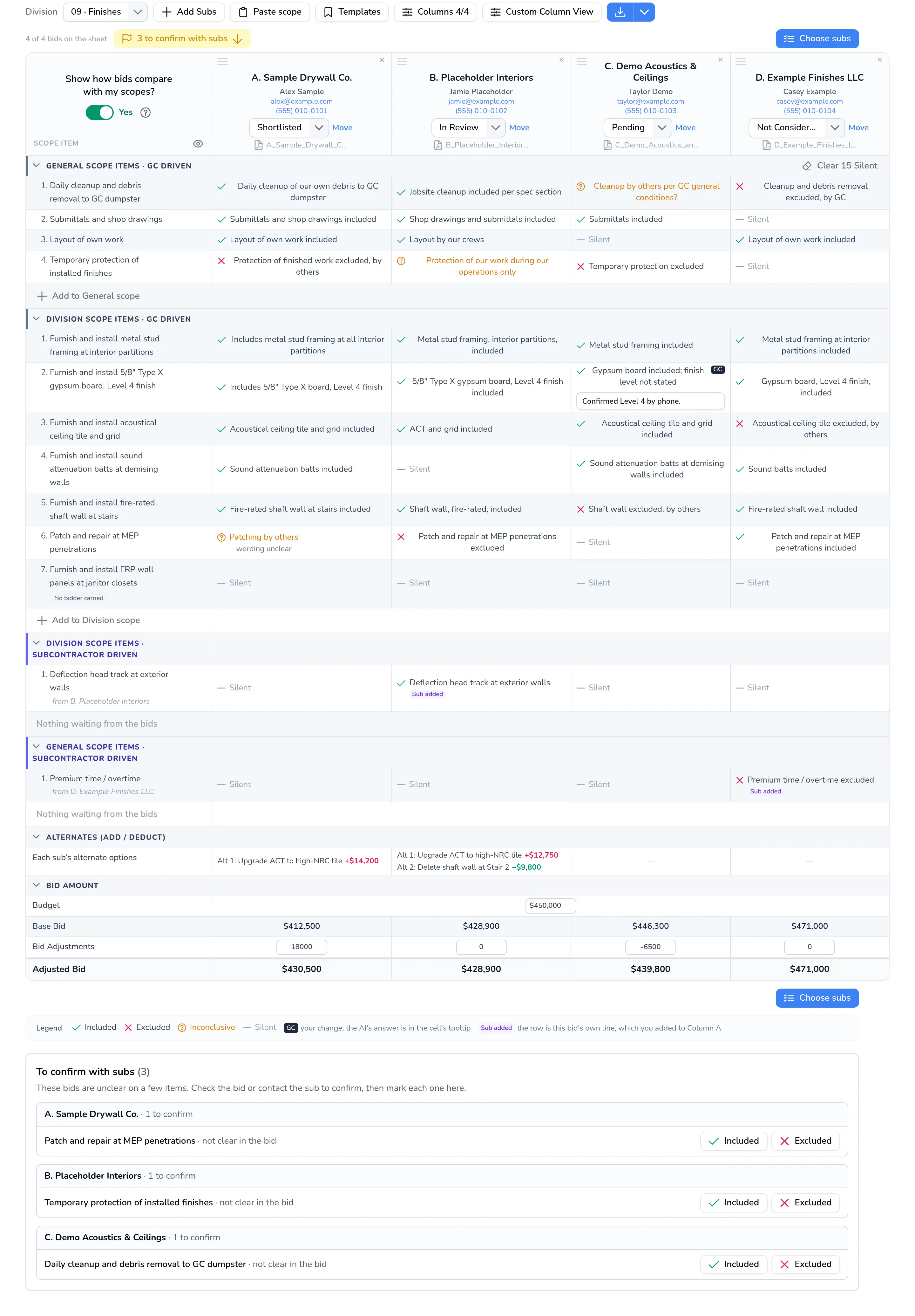
Every bid you forward is read, sorted into its CSI Division, and lined up against your own scope rows. You decide what's included, what's excluded, and who gets the call.

Forever Free. No credit card required
What's In The Grid
Four Layers Of One Comparison
Each subcontractor becomes a single column, stacked top to bottom so price never gets read without the scope around it.
- Layer 1
Your Scope Rows
Column A is your own scope, under four headers: General Scope Items and Division Scope Items, each GC driven or Subcontractor driven. Paste it in or apply a saved template.
- Layer 2
Each Sub's Marks
Every row is marked Included, Excluded or Silent for each bidder. Turn on the AI comparison to see Inconclusive items, the bid's own words and the page they're on.
- Layer 3
Bid Amounts
Budget, Base Bid, Bid Adjustments and Adjusted Bid, with bidders read left to right from the lowest price.
- Layer 4
Alternates
Each sub's add and deduct alternates, in the sub's own words, kept beside the base bid.
The Flow
Four Steps From ITB To Bid Day
You keep your scopes and your bid tab sheet. We handle all the data entry.
Send Us The Invitation To Bid
Forward each invitation to bid (ITB) to your ConstructionBevy account. We create the project for you in the Bid Coverage Board and give you a unique email address for that one project.
Copy Your Scopes Into Your Project Spreadsheet
Your bid tab is the Excel or Google Sheets file you use to compare bids. Copy the General and Division scope items from it and use Paste Scopes. They become Column A, blank rows included. We never write your scopes.
Forward Every Sub Bid To The Project Email
Send every sub bid to the project's email address, or upload it. We read each bid, sort it into the right CSI Division as a bid, a supplier quote or misc, pull out the sub's contact info, inclusions, exclusions and price(s), and match each line to your scope items.
Level Bids On Your Own Sheet
Bids are read as they arrive in your ConstructionBevy Project. Pick your preferred sub(s) for each division, see each sub’s CSI trades with a summary on hover, copy those bids next to Column A in your own Excel or Google Sheets bid tab, and finish your leveling. No printing bids and no manual entry of subcontractor information.
Plain View And AI Comparison
Two Ways To Read The Sheet
The sheet opens in the plain view, where you mark each cell yourself. Answer Yes to "Show how bids compare with my scopes?" to see the AI's marks, change any of them, and get a short list of items to confirm with subs.
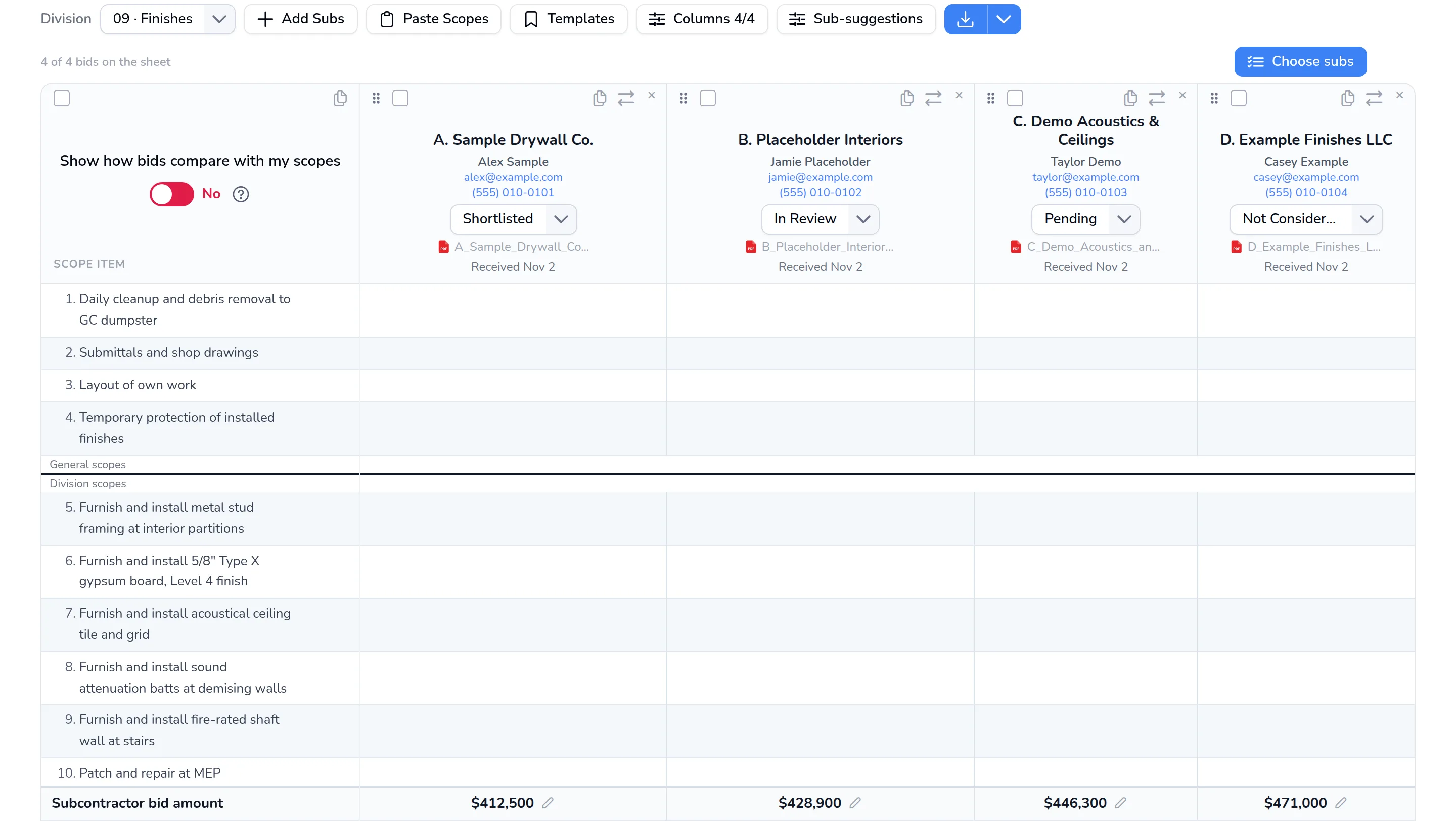
Plain View
Your own Included, Excluded and Silent pick in every cell, with room for notes.
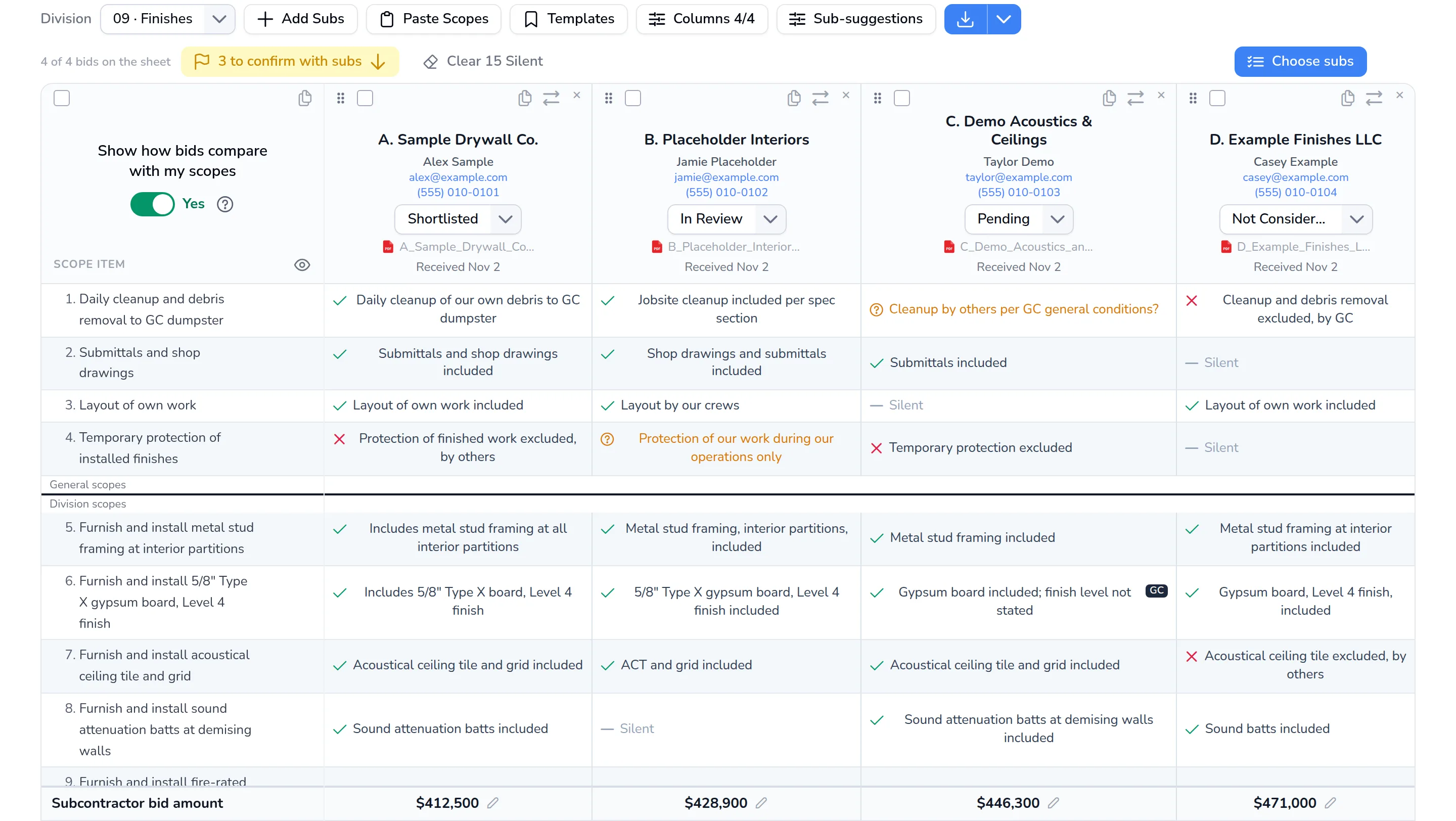
AI Comparison
The AI's marks with the bid's own words, a Legend, your changes marked GC, and a To confirm with subs list for anything Inconclusive.
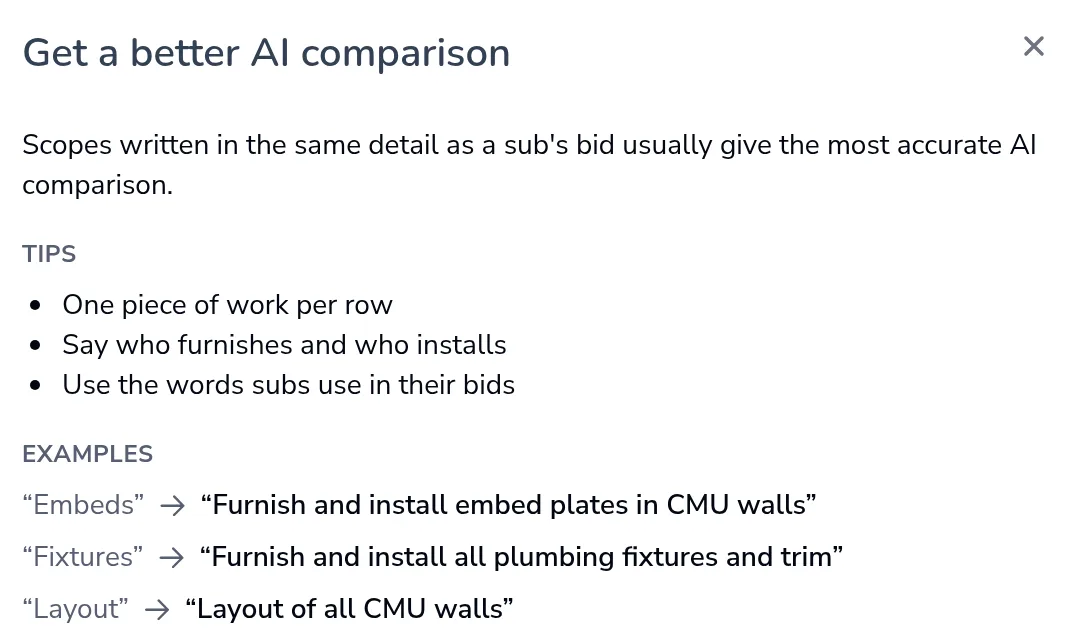
Better Scopes, Better Comparisons
Scopes written in the same detail as a sub's bid usually give the most accurate AI comparison. Keep one piece of work per row, say who furnishes and who installs, and use the words subs use in their bids.
Received Bids
From Inbox To Bid Tab
Every bid read from your project's emails and uploads is listed by division, and anything that wasn't a bid is listed under Not bids. Copy any section straight into your bid tab sheet, or export the sheet to Excel or PDF.
Forward Bids To The Project
Each project gets its own email address. Forward sub bids to it, or upload them.
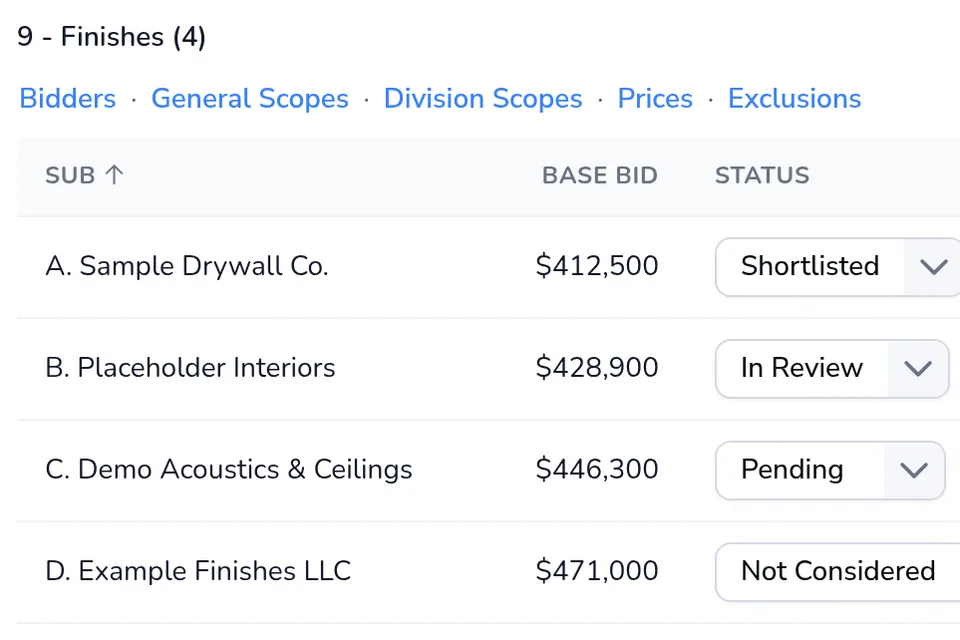
Copy Into Your Bid Tab
Copy Bidders, General Scopes, Division Scopes, Prices or Exclusions for any division in one click.
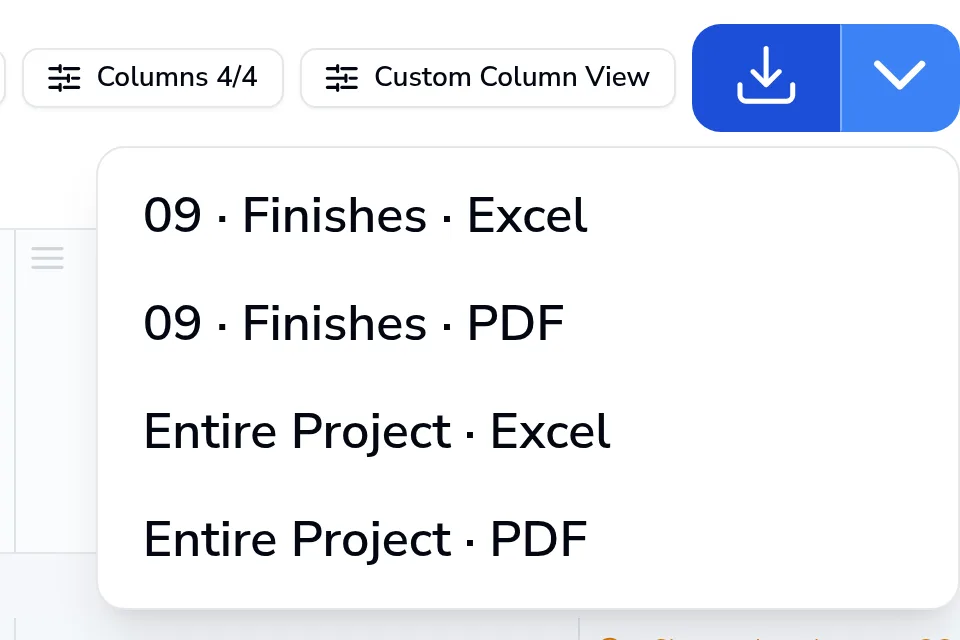
Export By Division Or Project
Download Excel or PDF for the division on screen or for the entire project.
See It In Action
One Division, Four Bidders, Leveled
Division 09 - Finishes, from a demo project. This is the sheet as it appears in the product.